Software Installation
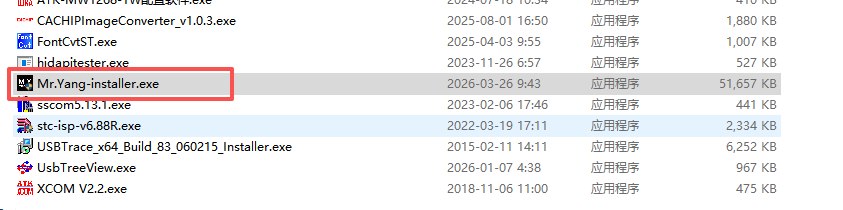
Welcome to the Mr. Yang Host Computer Software Installation Wizard. After receiving the software installation package, first double-click the .exe installation package with the following name.
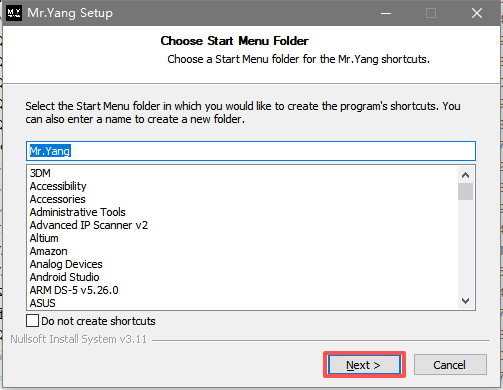
The following screen will appear. Click the "Next" button, as shown in the image below:
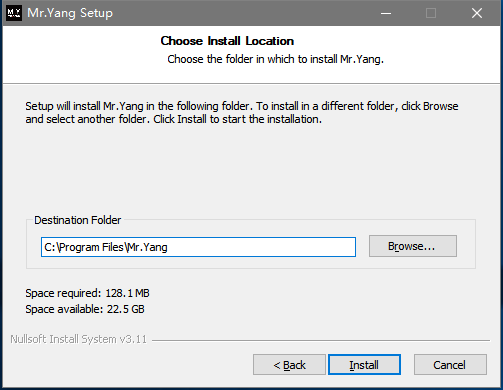
Next, you'll see options for the installation directory. Since the software is small, we can simply install it using the default path, as shown in the image below:
After clicking "install", the installation progress will appear. Please wait patiently. The following pop-up window will appear:
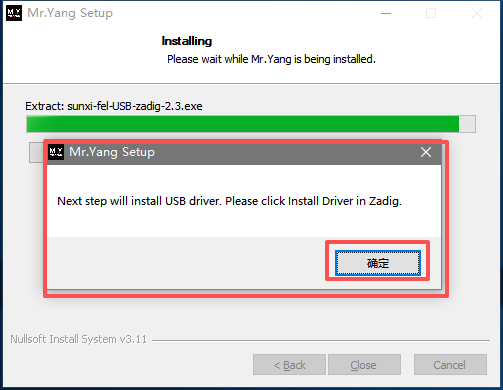
This step requires us to install the device's USB driver; simply click "OK".
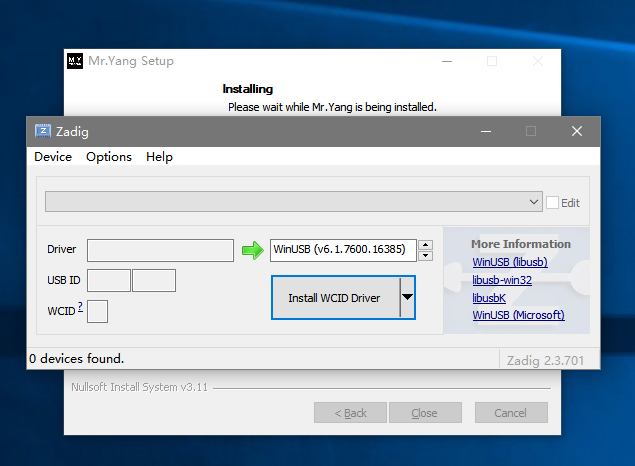
The pop-up image above shows the driver installation interface. At this point, we need to connect the device via USB and enter the device's flashing mode. The steps to enter are as follows:
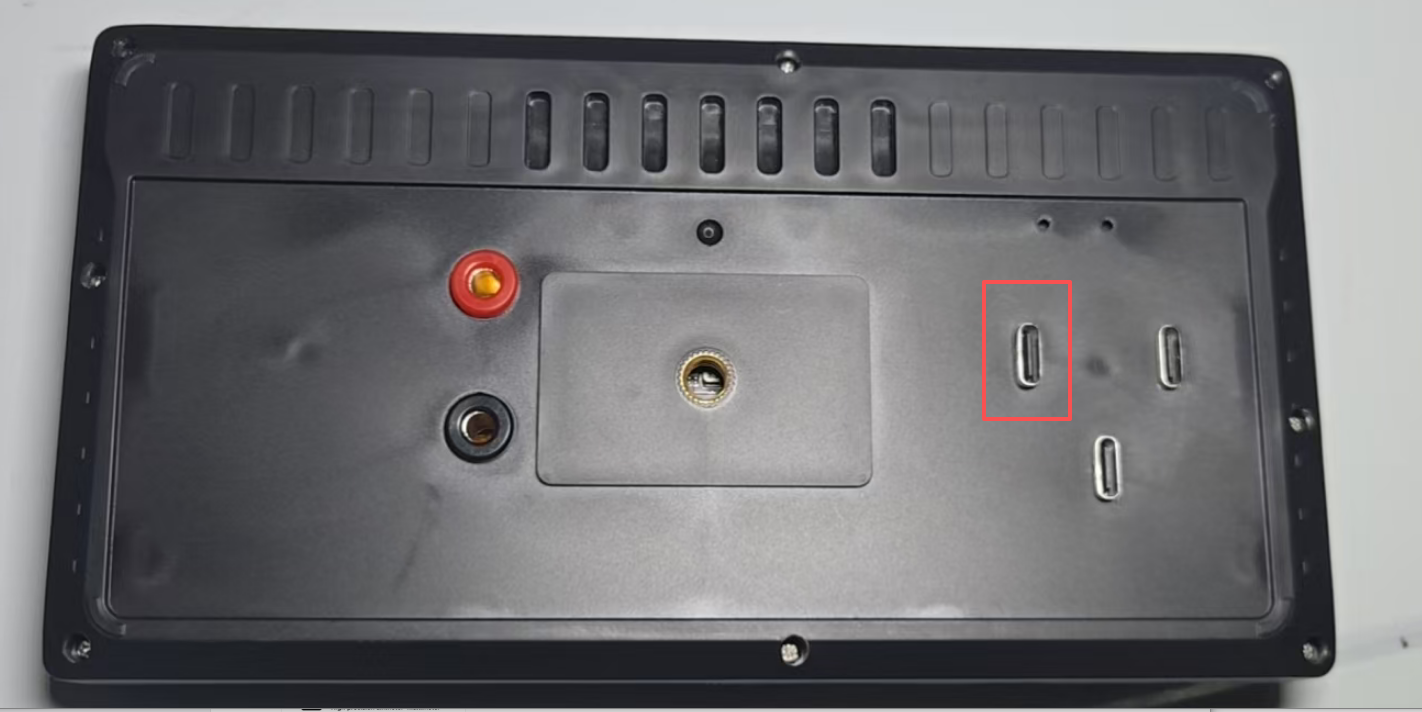
- Insert the Type-C cable into the device at the following location:
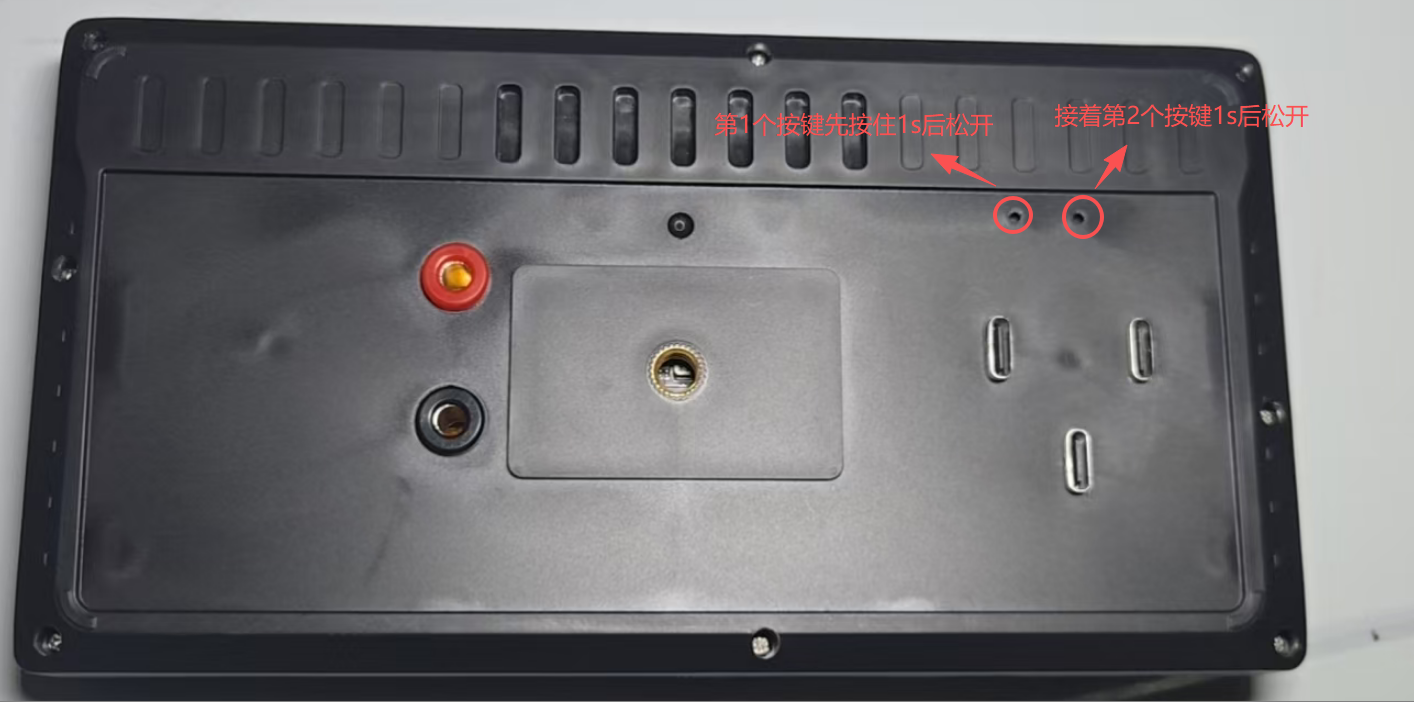
- Then, enter the burning mode by pressing the buttons on the device. To do this: First, press the buttons shown in the image below. Release the first button after 1 second, then press and hold the second button for 1 second and release it. You will hear a prompt from the PC system. The button positions are shown in the image below.
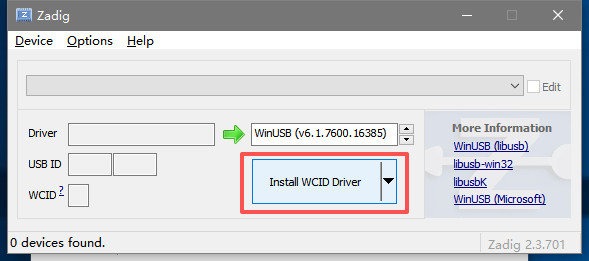
After completing the above steps, click the button shown below on the interface, and then wait patiently for the installation to complete:
After waiting for a while, a message will pop up saying "Installation successful". Then, follow the steps in the image below.
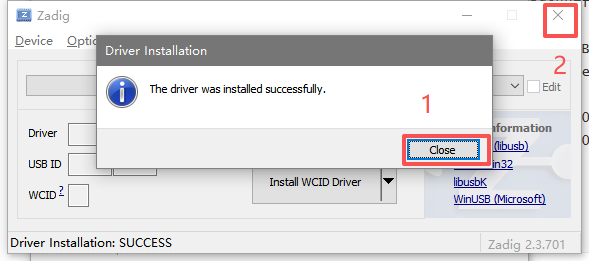
At this point, RanGen has been successfully installed. We only need to click the "close" button to complete the installation, as shown in the image below:
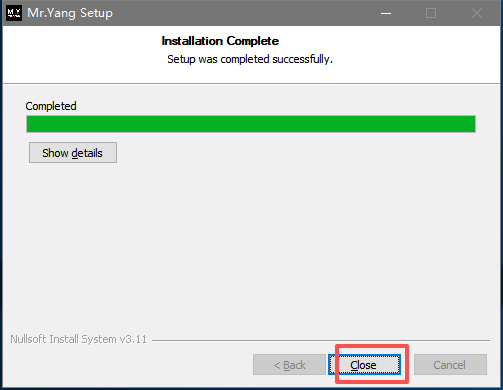
An icon like this will appear on your PC desktop: This indicates that the software installation was successful.