Software Usage
Welcome to Mr. Yang host computer software
MCU firmware upgrade
First, we connect the device via USB and enter the burning mode, as shown in the picture below:
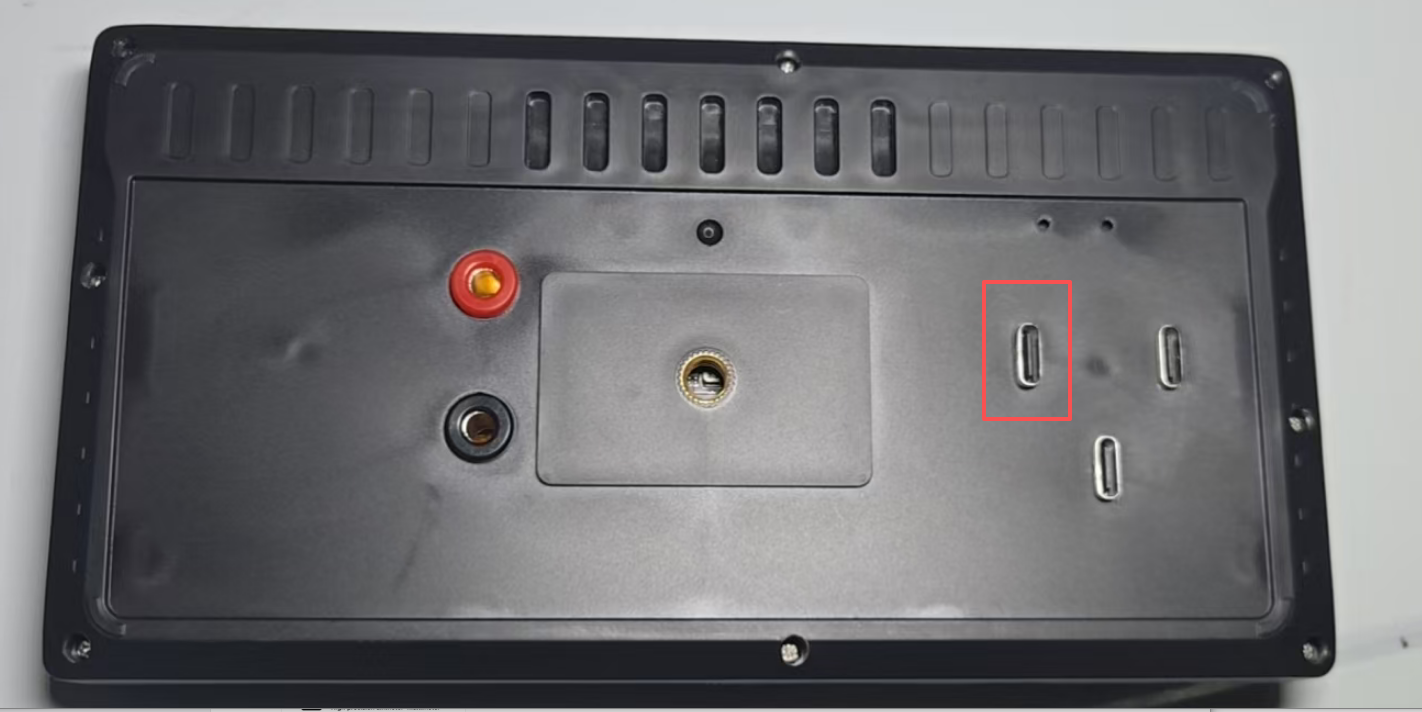
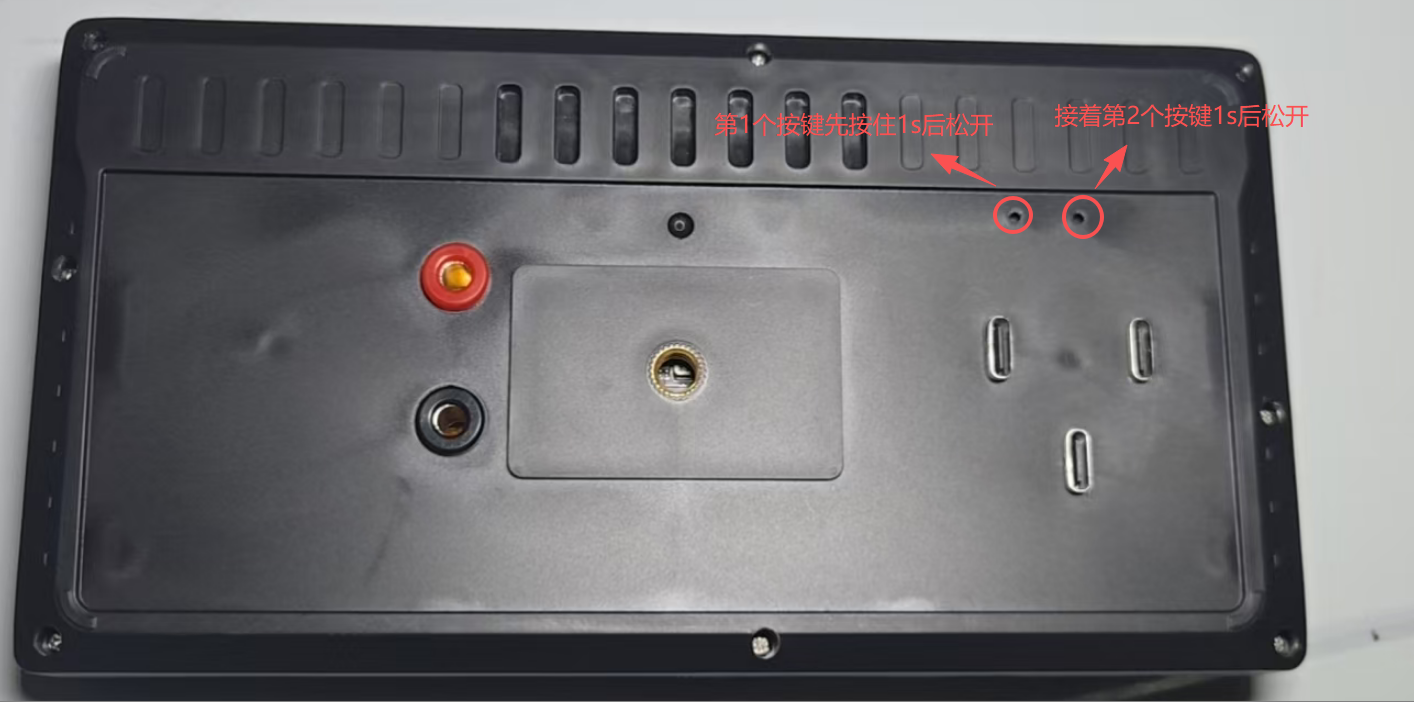
After completing the above steps, open the software and you will see the following interface, where you will see the word "Connected," as shown in the image below:
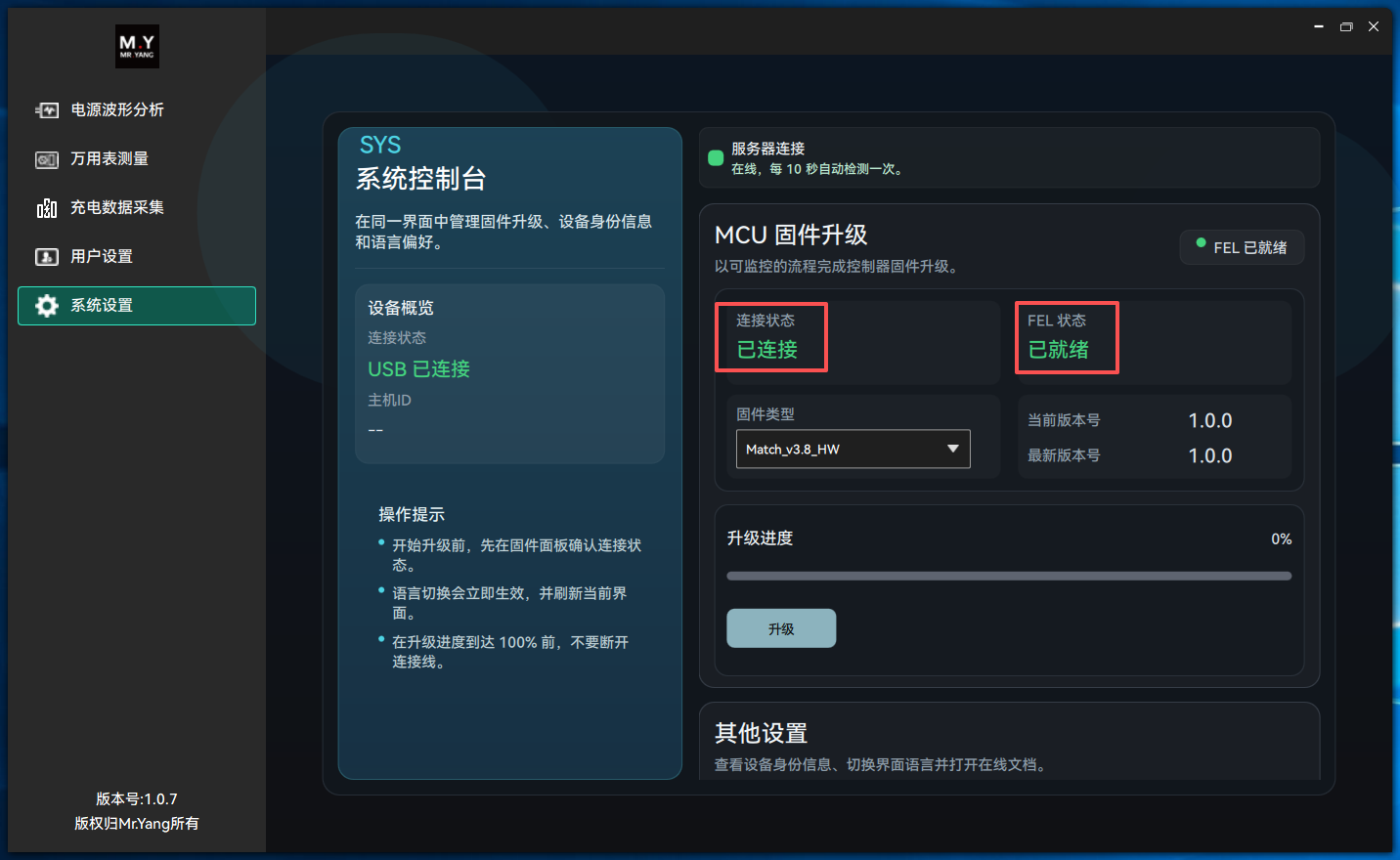
Troubleshooting: If the two areas mentioned above are grayed out, check the USB cable for problems and whether the device is in flashing mode to see if the driver is installed successfully.
If everything is normal, select the corresponding firmware type and click the "Upgrade" button, as shown in the image below:
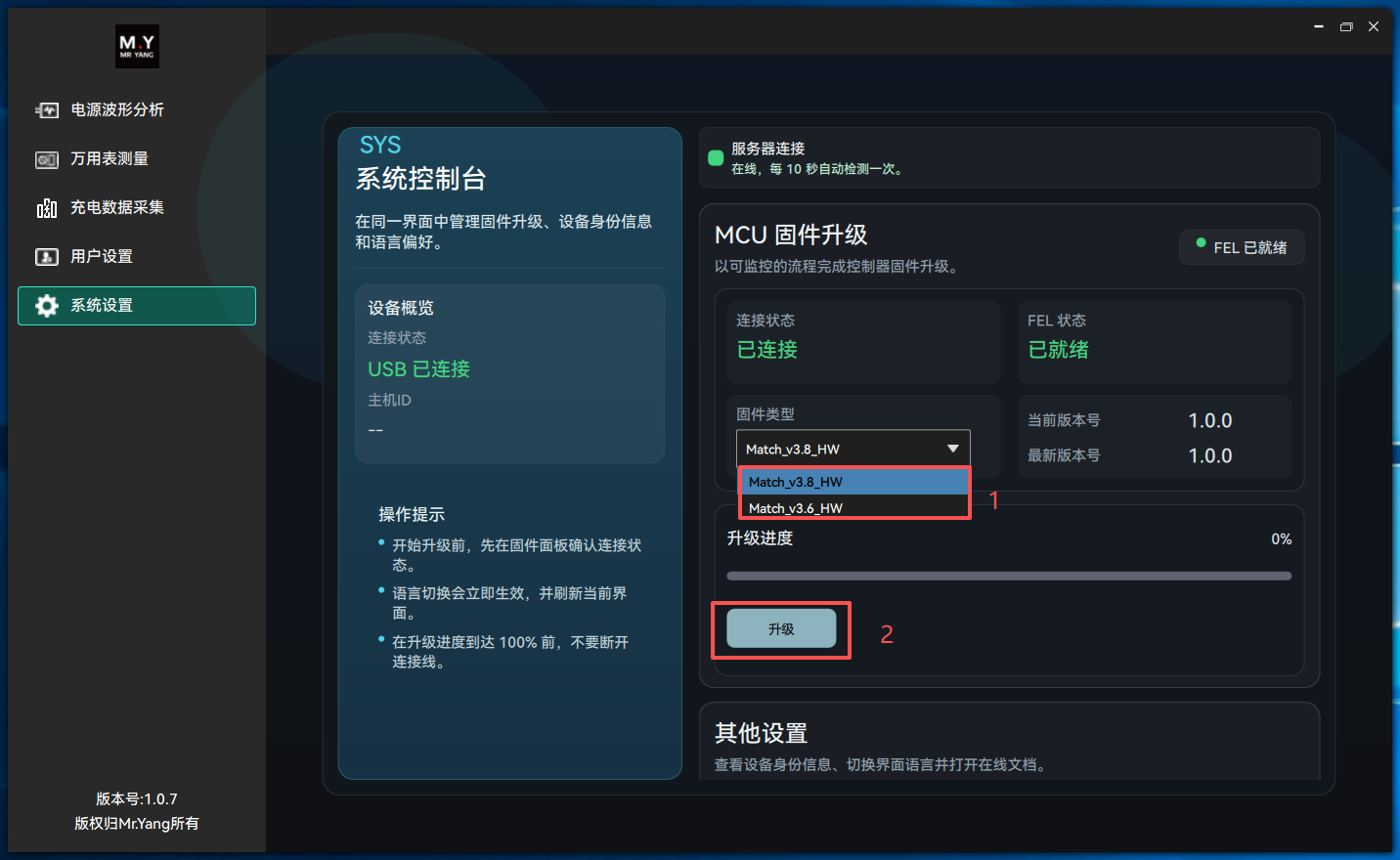
During the upgrade process, you will see the progress bar change and status text will be displayed, as shown in the following interface:
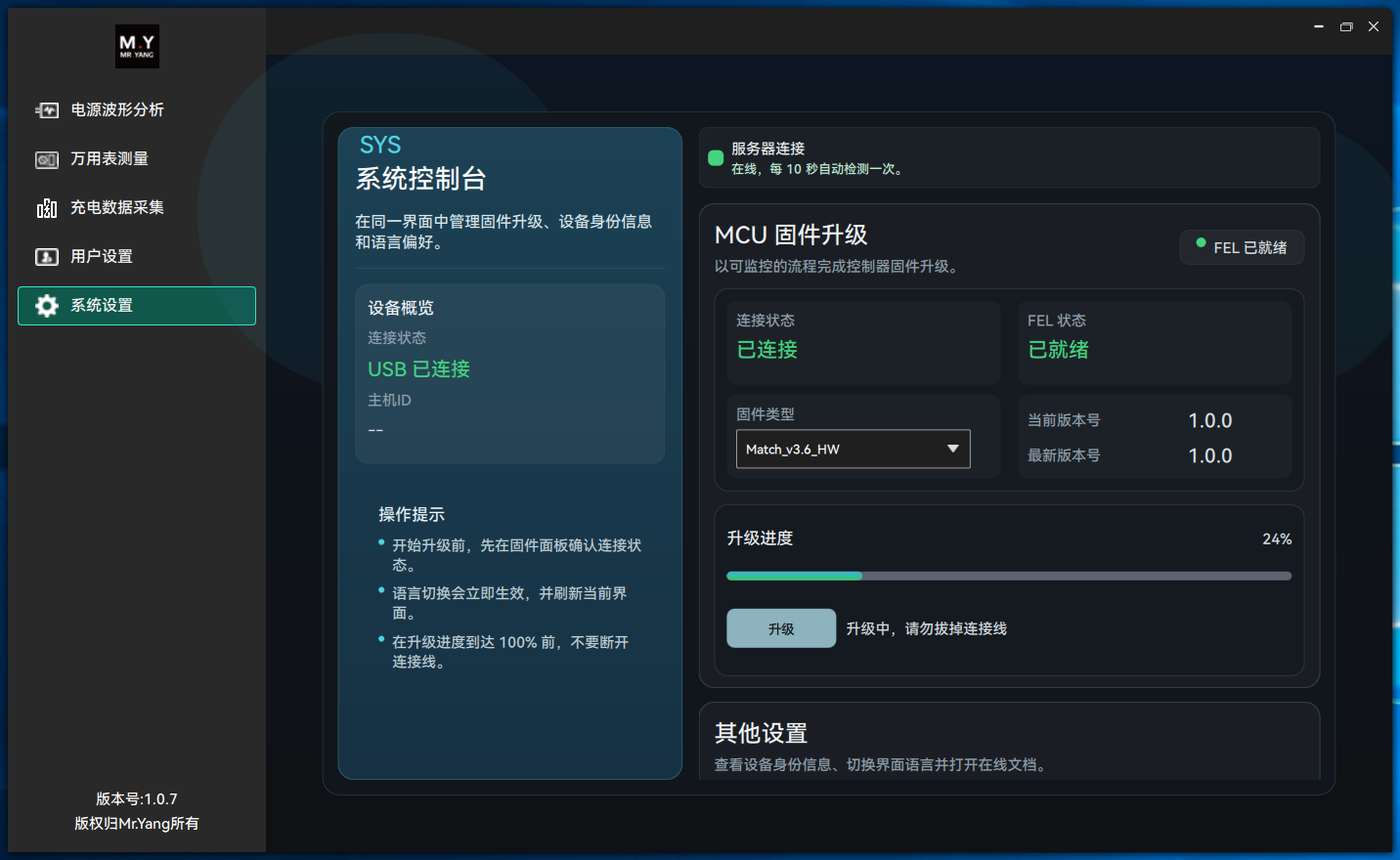
After waiting patiently for a while, the following status will appear, indicating that the MCU firmware upgrade is complete:
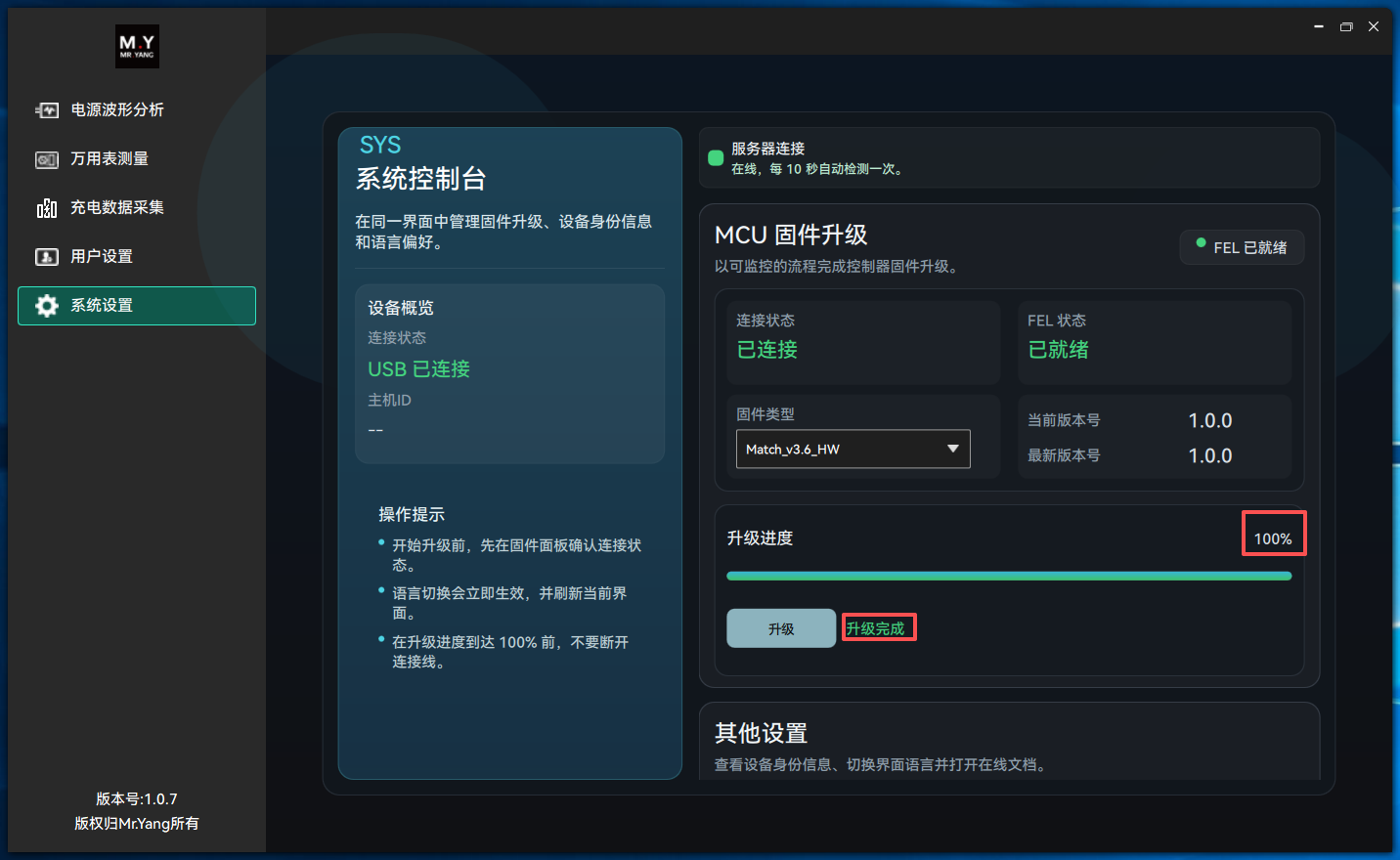
After that, we can power off and restart the device to verify that the MCU firmware version is the latest.